Timse
Your work sessions, in the macOS menu bar.
macOS 14.0 or later · Version 1.1
A look at what it does
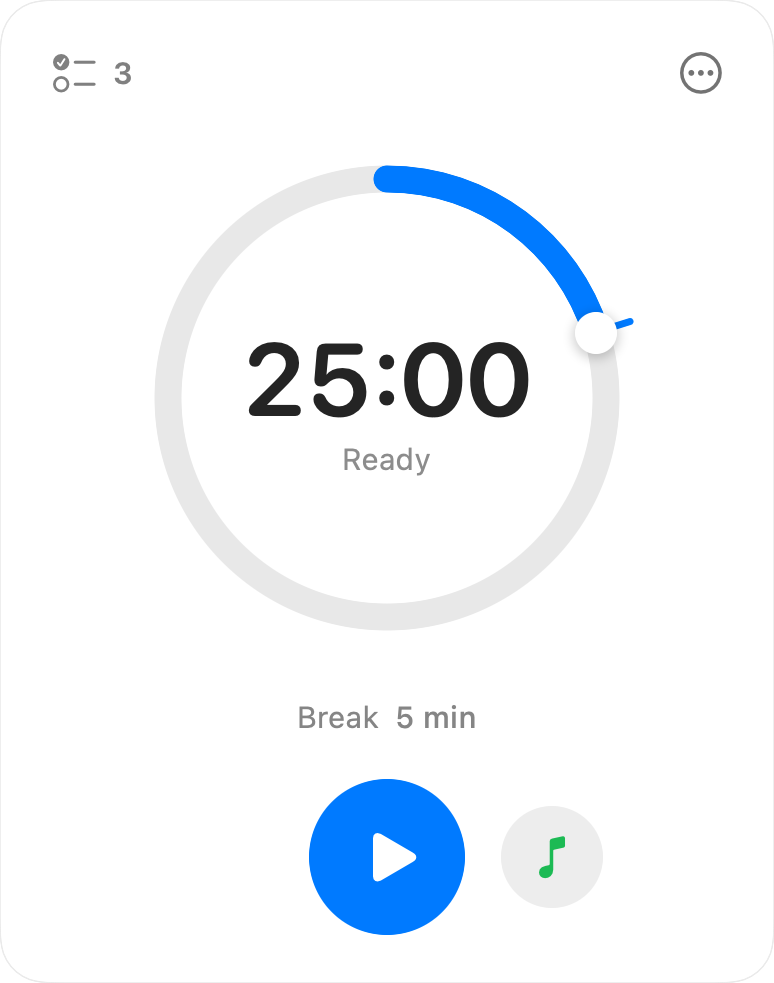
Use the ring to pick how long your session runs.
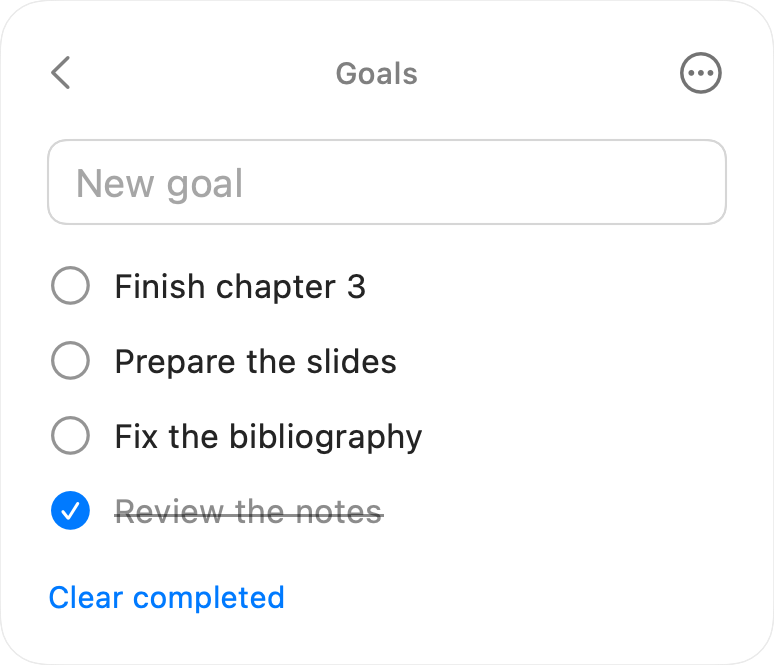
Use Goals to keep track of everything you want to finish.
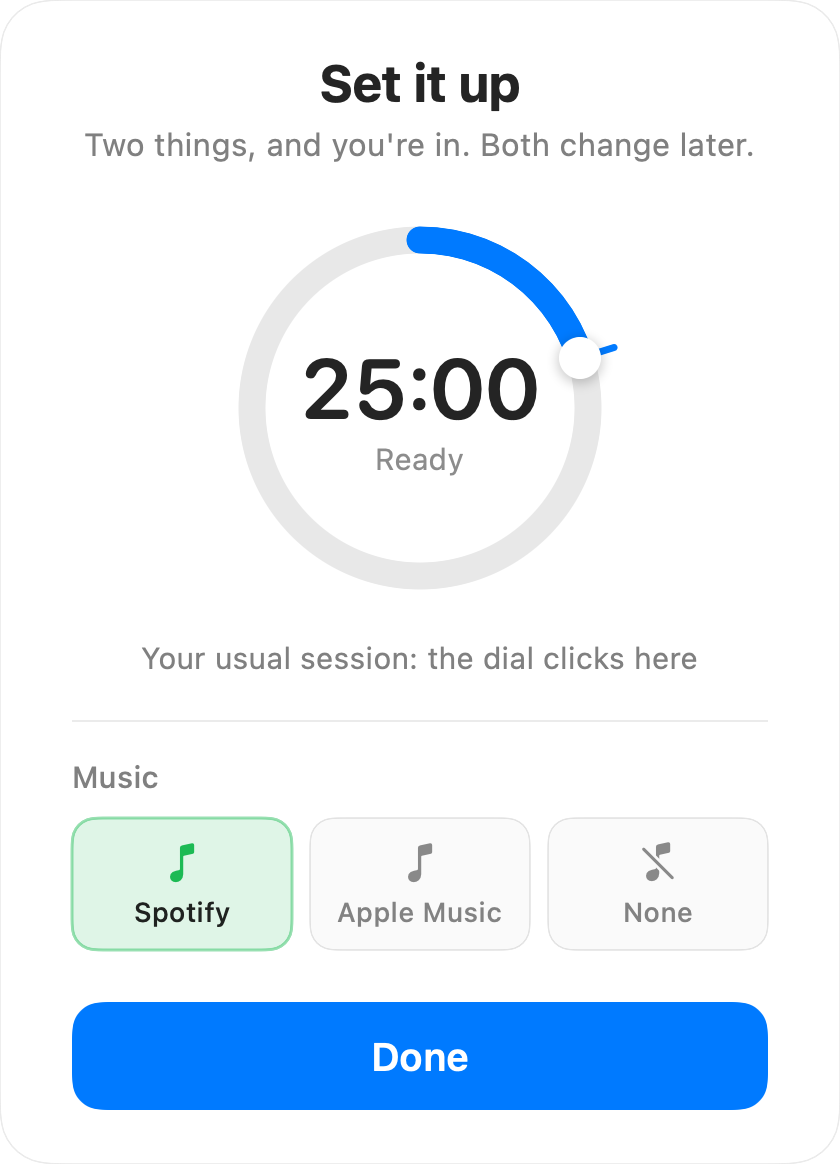
Set your default session and music shortcut.
Smart widget
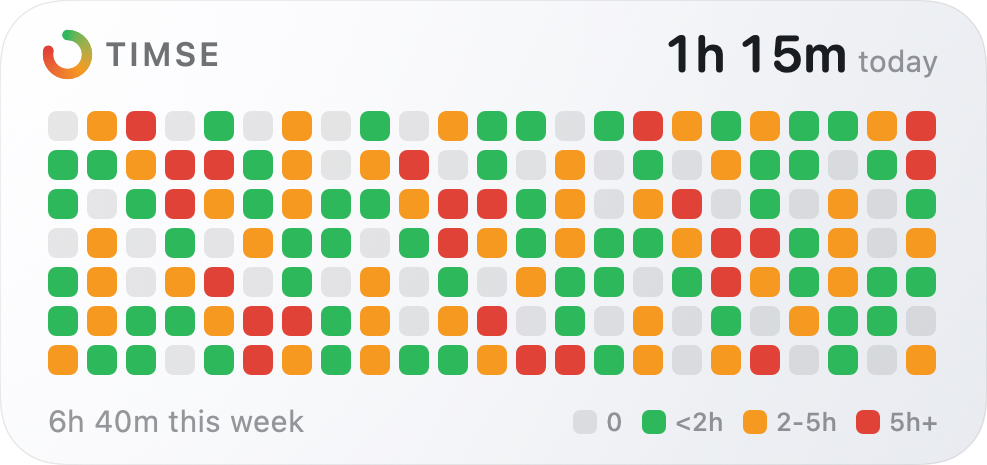
Every session you have done
One square per day: green for lighter days, red for the days you really pushed.
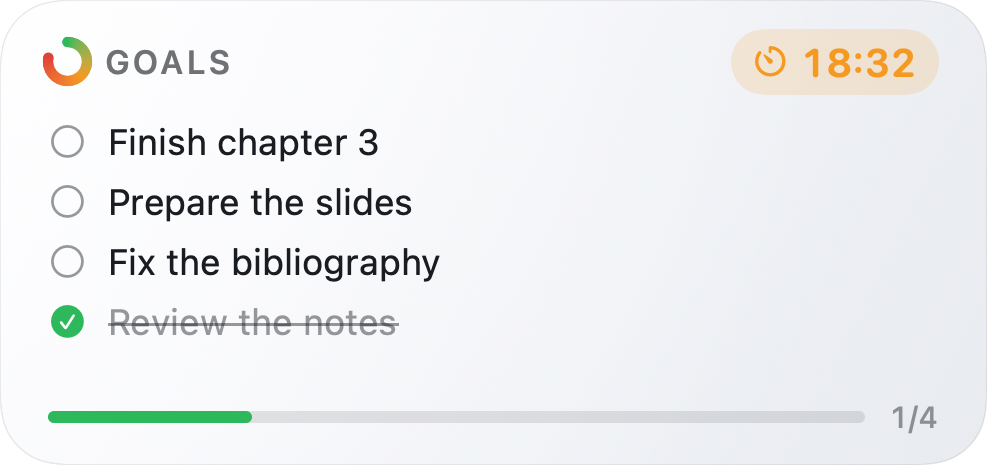
The same widget during a session
As soon as your work session starts, the widget switches to the goals you entered in the app.
Break
During a break this animation marks the end of your work session. You can choose whether to cover the screen for the whole break or keep just the four-second breath.
-
Continuous cycle
Turn it on and the break flows straight back into work until you stop it. Turn it off and Timse resets at the end of the break, then waits. Either way you can pause the count or skip the current phase.
-
How a phase ends
Two distinct sounds, one for the end of work and one for the end of a break, so you know what happened without looking. On screen you get either a four-second breath that fades on its own, or a full-screen veil: one or the other, never both.
-
Never loses count
Timse does not count seconds; it records the exact moment your session ends. Close your Mac mid-pomodoro and open it later: what you see on wake is the real time left, not a frozen timer.
-
Native and light
Written in Swift for macOS. No Electron and no web view: it lives in the menu bar, launches at login if you ask, and puts a button next to play for Spotify or Apple Music. Pick neither and the button disappears.
- License included, whatever amount you pick
- macOS 14.0 Sonoma or later
- Apple Silicon
- 14-day refund on whatever you left
- Free updates, installed inside the app
Timse started from a frustration. Every pomodoro app I tried asked me three questions before letting me work: how long to focus, how long to rest, how many rounds to repeat. I wanted one that only asked one.
Everything else comes from there. The break is not a setting because the right ratio is already known. The dial is also the control because another slider under the timer was one more thing to look at. And the history lives in a widget instead of the panel, because something you check once a day does not belong inside the control you open twenty times.
- First public release.
Can I really set the price to zero?
Yes. At checkout there is an amount box: leave it as is, change it, or set it to zero. The app and license key you receive are identical, and no feature is reserved for paying users.
Then why would I pay?
Because I maintain Timse myself, and what you leave decides how much time I can dedicate to it. Pick whatever amount feels right to you.
How do I set how long I work?
Drag around the edge of the dial. If you need an exact number, click the time in the center and type it: anywhere from 1 to 120 minutes.
Can I change where the dial snaps?
Yes. Timse asks the first time you open it, and the three-dot menu lets you move it later to whatever value the dial is showing.
Can I set the break length?
No, and that is deliberate. The break is always one fifth of the work session, the classic pomodoro ratio. Taking it out of your daily decisions is half the point of the app.
What does the Smart widget do?
It switches on its own depending on what you are doing. While a session is running it shows your goals and remaining time; when the timer is idle it goes back to your session history.
Can the break lock keep me out of my Mac?
No. The code to exit early is written right on screen, and the veil drops on its own when the break finishes. It is friction, not a lock.
Which Macs does it run on?
Any Apple Silicon Mac running macOS 14 Sonoma or later.
What happens after the 7 days?
You get the full app for 7 days, with no card and no account. After that, a license key unlocks it forever.
How do I unlock it?
Download the app, grab a license key at checkout, and paste it once. It lands in your email within seconds.
How many Macs can I use it on?
All of them. One license covers every Mac you own, with no activation limit.
Are updates included?
Yes. Every future version is free and installs directly inside the app.
Is it safe to install?
Yes. Timse is signed with an Apple Developer ID and notarized by Apple, so it opens with no security warnings.
Where does my data go?
Nowhere. Sessions and goals stay on your Mac inside a local container shared between the app and its widgets. Nothing goes through a server.
Need a hand? Write to besian@besianshala.com.